
Manual
This page explains the core aorisage controls and operating model.
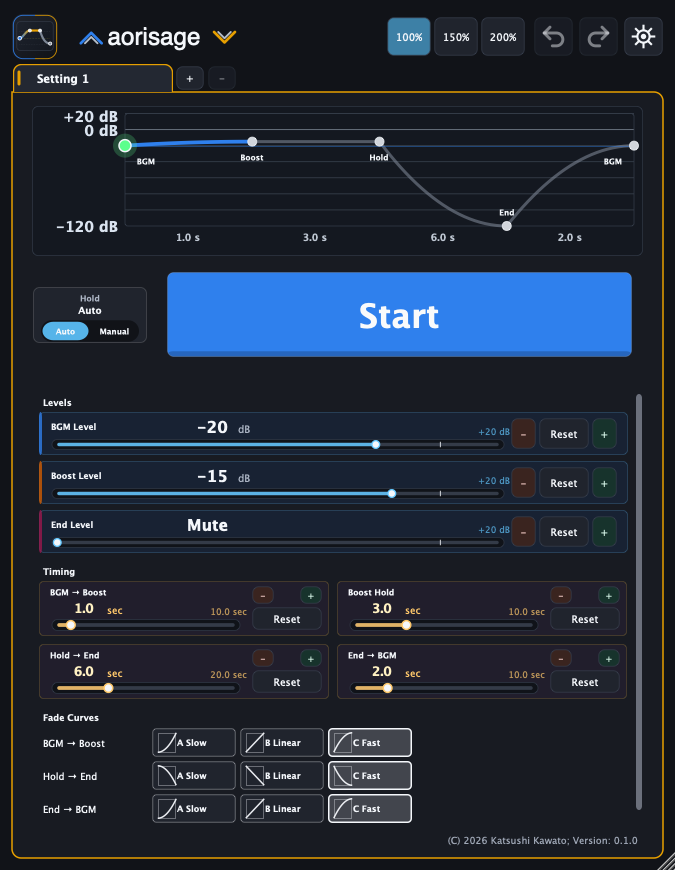
State flow
| State | Meaning |
|---|---|
| BGM On | Outputs the normal BGM Level |
| Boosting | Moves from BGM Level to Boost Level |
| Holding | Keeps Boost Level |
| Fading Out | Moves to End Level |
| Fade Out Complete | Fade out has completed |
| Returning | Moves from End Level back to BGM Level |
The main button or MIDI Trigger performs the main action.
Levels
| Control | Meaning | Maximum |
|---|---|---|
| BGM Level | Normal BGM output level | +20 dB |
| Boost Level | Output level while lifting the room | +20 dB |
| End Level | Output level after Fade Out, either Mute or a dB value | +20 dB |
Boost Level is absolute, not relative to BGM Level. If BGM Level is -20 dB and Boost Level is -15 dB, the boosted output target is -15 dB.
Timing
| Control | Meaning | Maximum |
|---|---|---|
| Boost Time | Time from BGM Level to Boost Level | 10.0 s |
| Hold Time | Time to hold Boost Level when Hold Mode is Auto | 10.0 s |
| Fade Out Time | Time to move to End Level | 20.0 s |
| Return Time | Time to move back to BGM Level | 10.0 s |
When Hold Mode is Manual, Hold Time is not used as a hidden countdown. It stays held until the next main action.
Fade Curves
Fade In Curve, Fade Out Curve, and Return Curve control the feel of each gain move.
| Curve | Meaning |
|---|---|
| A | Slow start, faster later |
| B | Even-feeling linear movement |
| C | Fast start, gentler later |
For pre-show fade outs, Curve C often makes the start of the fade clear while keeping the tail natural.
Hold Mode
Auto advances from Hold to Fade Out after Hold Time. Manual holds the Boost Level until the next main action.
Use Manual when the cue depends on the room or the stage. Use Auto when the timing is fixed.
UI Scale
Use the 100%, 150%, and 200% buttons in the header to change UI Scale. The setting is saved with the project.
Preferences
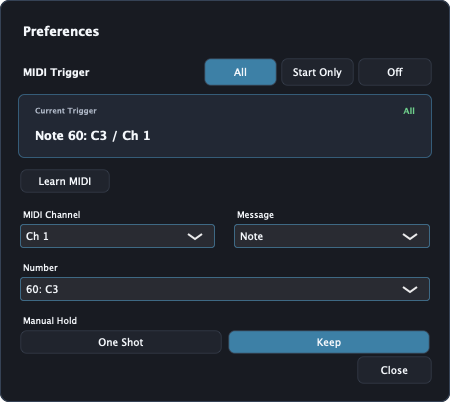
Preferences controls MIDI Trigger.
| Control | Meaning |
|---|---|
| MIDI Trigger | Selects how MIDI input is used: All for normal main actions, Start Only only to start from BGM On, or Off to disable MIDI Trigger while preserving the binding |
| Current Trigger | Shows the current Note / CC, number, and channel |
| Learn MIDI | Captures the next Note or CC as Current Trigger |
| MIDI Channel | Selects Omni or Ch 1 through Ch 16 |
| Message | Selects Note or CC |
| Number | Selects the Note number or CC number |
| Manual Hold | Selects One Shot or Keep |
With Manual Hold set to Keep, a press can start Boost / Hold and a release can start Fade Out. One Shot treats the press as one main action.
MIDI Trigger
aorisage receives MIDI input for MIDI Trigger. It does not produce MIDI output.
For Note input, Note On is treated as press and Note Off as release. Note On with velocity 0 is treated as Note Off. For CC input, values 64 and above are treated as press, and values 63 and below are treated as release.
MIDI Trigger works even when the plug-in editor is closed. Route MIDI to aorisage in your DAW.
Sustain pedal example
- Set Hold Mode to Manual.
- In Preferences, set MIDI Trigger to All.
- Use Learn MIDI to capture the sustain pedal.
- Set Manual Hold to Keep.
- Press the pedal to start Boost / Hold.
- Release the pedal to start Fade Out.
Use Start Only when you want MIDI to start the flow but not perform later main actions.
Multichannel use
aorisage is designed to apply the same gain intent across mono, stereo, and multichannel layouts. It does not perform spatial decoding or creative downmixing.
Troubleshooting
The boost is too loud
Lower Boost Level. aorisage can use values above 0 dB, so also check downstream processing and meters.
Fade Out starts too early
Use Hold Mode: Manual or increase Hold Time. In Auto mode, check the combined Boost Time and Hold Time.
MIDI pedal behavior is wrong
Check that the DAW routes MIDI to aorisage, that Current Trigger matches the actual Note / CC, and that MIDI Trigger is not Off. For CC pedals, confirm that press arrives as 64 or above and release arrives as 63 or below.